
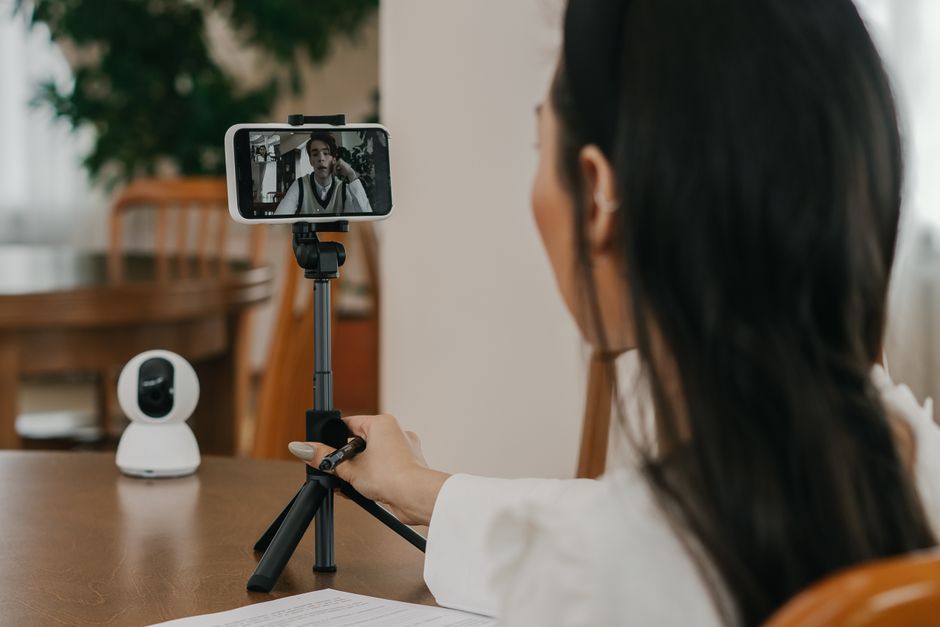
Turn Your Smartphone into a High-Quality Webcam for Seamless Video Calls and Streaming
The modern smartphone is a powerhouse of technology, boasting advanced cameras capable of capturing stunning visuals. Yet, for many, its primary function remains communication, often facilitated by video calls or live streaming. When the built-in webcam of a laptop or desktop falters in quality, or when a dedicated webcam is unavailable, the question arises: can my phone be a viable alternative? The answer is a resounding yes. Utilizing your smartphone as a webcam opens up a world of enhanced video quality, flexibility, and cost-effectiveness. This comprehensive guide will equip you with the knowledge and practical steps to transform your mobile device into a professional-grade webcam, suitable for everything from crucial business meetings to engaging live streams.
The primary advantage of using a smartphone as a webcam lies in its superior camera hardware. Modern smartphones, particularly flagship models, are equipped with high-resolution sensors, advanced image stabilization, and sophisticated low-light performance capabilities that often surpass those found in integrated laptop webcams or even many standalone USB webcams. This translates directly into sharper images, clearer video, and a more professional appearance during your online interactions. Furthermore, the versatility of a smartphone camera allows for greater control over framing and perspective. You can easily adjust its position, utilize different lenses (wide-angle, telephoto), and leverage the device’s portability to find the perfect shot. This flexibility is invaluable for content creators who require specific visual aesthetics or for individuals who need to present materials from different angles during a call. Beyond image quality, the cost-effectiveness is undeniable. Instead of investing in a separate webcam, you’re repurposing an existing device, saving money and reducing electronic waste. This makes it an accessible solution for students, remote workers, or anyone looking to improve their online presence without significant expenditure.
The process of using your phone as a webcam typically involves one of two main approaches: wireless connection or wired connection. Both methods have their distinct advantages and disadvantages, and the optimal choice often depends on your specific setup, internet stability, and desired latency.
Wireless Connection: Convenience and Mobility
Wireless connection offers the greatest convenience and mobility. By leveraging your Wi-Fi network, you can connect your smartphone to your computer without the hassle of cables. This is particularly useful if your computer’s webcam is in an inconvenient location or if you need to move around during your call or stream. The primary requirement for a stable wireless connection is a robust and reliable Wi-Fi network. Interference, low signal strength, or a congested network can lead to stuttering video, audio desynchronization, and dropped connections, significantly degrading the user experience.
To establish a wireless webcam connection, you will need to install a dedicated app on both your smartphone and your computer. Numerous applications are available on both iOS and Android app stores, as well as for Windows and macOS. Popular options include DroidCam, Camo, iVCam, and EpocCam. While many of these apps offer free basic functionality, advanced features like higher resolutions, additional camera controls, and ad removal often come with a premium subscription or a one-time purchase.
The general workflow for most wireless webcam apps is as follows:
- Install the App on Your Smartphone: Download the chosen webcam app from your device’s respective app store.
- Install the Client Software on Your Computer: Visit the developer’s website for the chosen app and download the corresponding client software for your operating system (Windows or macOS).
- Connect to the Same Wi-Fi Network: Ensure both your smartphone and your computer are connected to the identical Wi-Fi network. This is a critical step for the devices to discover each other.
- Launch the App on Your Smartphone: Open the webcam app on your phone. It will typically display an IP address and port number.
- Launch the Client Software on Your Computer: Open the client application on your computer.
- Enter Connection Details: In the computer client, you will need to enter the IP address and port number displayed on your smartphone app. Some apps offer automatic discovery, simplifying this step.
- Start the Stream: Once connected, you should see a preview of your phone’s camera feed within the computer client. You can then select your phone as the camera source within your preferred video conferencing software (Zoom, Microsoft Teams, Skype, Google Meet) or streaming application (OBS Studio, Streamlabs).
Considerations for Wireless Connections:
- Latency: Wireless connections inherently introduce some latency (delay) between your actions and what appears on screen. For casual video calls, this is usually negligible. However, for professional streaming or real-time interactive applications, even a small delay can be problematic.
- Network Congestion: If your Wi-Fi network is heavily utilized by other devices, your video stream’s performance may suffer. Consider minimizing other network activity during your webcam session.
- Battery Life: Running your phone’s camera and Wi-Fi simultaneously can drain the battery quickly. It’s advisable to keep your phone plugged in or connected to a power source during extended use.
- Camera Control: Most webcam apps offer basic controls like switching between front and rear cameras, adjusting focus, and sometimes even exposure. Explore the app’s settings to find the optimal configuration.
Wired Connection: Stability and Low Latency
For users prioritizing stability, minimal latency, and a reliable connection, a wired USB connection is the superior choice. This method eliminates the reliance on Wi-Fi and provides a direct, high-bandwidth link between your phone and computer. This is particularly important for live streamers, gamers, or professionals who require the absolute lowest latency for their video feeds.
The process for wired connection is generally simpler and often involves fewer dependencies on specific apps, though some apps still facilitate this method. The primary requirement for a wired connection is a compatible USB cable and ensuring your phone supports USB tethering or has a specific mode for webcam output.
USB Tethering (Android):
For Android users, the most straightforward wired method often involves USB tethering. While primarily intended for sharing internet access, some applications can leverage the video stream generated through this process.
- Enable Developer Options on Your Android Phone:
- Go to Settings > About phone.
- Tap on Build number seven times rapidly. You’ll see a message indicating you are now a developer.
- Enable USB Debugging:
- Go back to Settings > System > Developer options.
- Toggle on USB debugging. You may be prompted to allow USB debugging from your computer; grant permission.
- Connect Your Phone to Your Computer via USB: Use a high-quality USB cable.
- Initiate USB Tethering:
- Go to Settings > Network & internet > Hotspot & tethering (the exact path may vary slightly depending on your Android version and manufacturer).
- Toggle on USB tethering.
- Install and Configure Webcam Software: While some apps can directly recognize the USB tethered stream, many will still require a companion app or client. For instance, DroidCam specifically supports wired connections via USB tethering. You would install DroidCam on your phone and the client on your PC. When prompted to choose a connection type, select "USB" and ensure USB debugging is enabled on your phone.
Direct Webcam Mode (Some iOS and Android devices):
Certain newer devices and specific webcam applications enable a direct webcam mode over USB, bypassing the need for tethering.
- Install a Compatible Webcam App: Apps like Camo and iVCam are excellent choices for both iOS and Android and are designed to work efficiently over USB.
- Connect Your Phone to Your Computer via USB: Use a reliable USB cable.
- Launch the App on Your Smartphone: Open the webcam app. It will likely prompt you to connect via USB.
- Launch the Client Software on Your Computer: Open the corresponding client software for the app.
- Establish Connection: The client should automatically detect your connected phone or provide a clear option to connect via USB.
- Select as Camera Source: Choose your phone as the camera in your conferencing or streaming software.
Advantages of Wired Connections:
- Lower Latency: Significantly reduced delay, crucial for professional use cases.
- Increased Stability: Less susceptible to Wi-Fi interference or network fluctuations.
- No Battery Drain: Your phone is likely charging while connected via USB.
- Higher Bandwidth: Potentially supports higher resolutions and frame rates.
Disadvantages of Wired Connections:
- Limited Mobility: You are physically tethered to your computer.
- Cable Management: Can create a less tidy setup.
- USB Port Availability: Requires a free USB port on your computer.
Optimizing Your Smartphone Webcam Setup
Once you’ve chosen your connection method and installed the necessary software, there are several steps you can take to optimize your smartphone webcam for the best possible results.
- Positioning and Lighting: This is arguably the most critical factor for good video quality, regardless of the camera.
- Front Lighting: Position a light source in front of you, ideally slightly above eye level. Avoid backlighting, which will silhouette you. Soft, diffused light (e.g., from a ring light or bounced off a wall) is more flattering than harsh, direct light.
- Camera Angle: Position your phone at eye level to create a natural and engaging perspective. Avoid looking up or down at the camera. A phone tripod or a small stand is essential for achieving this consistently.
- Background: Ensure your background is clean, uncluttered, and not distracting. A simple, neutral background often works best.
- Camera Settings: Explore the settings within your chosen webcam app.
- Resolution: While higher resolutions (1080p, 4K) offer greater detail, they also require more bandwidth and processing power. For most video calls, 1080p is sufficient. For streaming, experiment to find the optimal balance between quality and performance.
- Frame Rate: 30 frames per second (fps) is standard for most video. Higher frame rates (60fps) can provide smoother motion, but again, require more resources.
- Focus: Ensure your camera is focused on your face. Many apps offer manual focus controls or the ability to lock focus.
- Exposure: Adjust exposure settings to ensure your image is neither too dark nor too bright. Some apps offer manual exposure control.
- Audio: While this guide focuses on video, don’t neglect audio.
- Use Your Phone’s Microphone: Many webcam apps allow you to use your phone’s microphone for audio. This can sometimes provide better quality than a laptop’s built-in microphone.
- External Microphone: For the best audio quality, consider using a dedicated external microphone connected to your computer or smartphone.
- Reduce Background Noise: Find a quiet environment for your calls and streams.
- App Updates: Regularly update both your smartphone webcam app and its computer client. Developers often release updates to improve performance, fix bugs, and add new features.
- Test Your Setup: Before an important meeting or stream, always conduct a test call or recording to ensure everything is working correctly and that you’re happy with the video and audio quality.
Troubleshooting Common Issues
Even with the best setup, you might encounter occasional issues. Here are some common problems and their solutions:
- Connection Drops (Wireless):
- Ensure both devices are on the same Wi-Fi network.
- Move your phone and computer closer to your Wi-Fi router.
- Restart your router and modem.
- Temporarily disable other devices consuming significant bandwidth.
- Try a wired connection if possible.
- Lagging or Stuttering Video:
- Reduce the resolution or frame rate in the webcam app settings.
- Close unnecessary applications on both your phone and computer.
- Ensure your Wi-Fi signal is strong (for wireless).
- For wired connections, try a different USB cable or USB port.
- No Image or Black Screen:
- Verify that the correct camera source is selected in your video conferencing or streaming software.
- Ensure the webcam app and its client are running.
- Check that USB debugging is enabled (for Android wired connections).
- Restart the webcam app, client, and potentially your computer.
- Audio and Video Out of Sync:
- This is often a latency issue. Try reducing resolution or frame rate.
- Ensure you are using the same audio and video input source for the call/stream.
- A wired connection is generally better for synchronization.
Conclusion
Leveraging your smartphone as a webcam is a practical and highly effective solution for anyone seeking to enhance their online video presence. By understanding the different connection methods (wireless and wired), selecting the right software, and optimizing your setup with proper lighting and positioning, you can achieve professional-grade video quality without significant financial investment. Whether you’re attending virtual meetings, engaging in live streaming, or simply want a better video call experience, your smartphone is a powerful tool waiting to be unleashed. Experiment with different apps and settings to discover the configuration that best suits your needs and elevates your digital communication.




Leave a Reply