
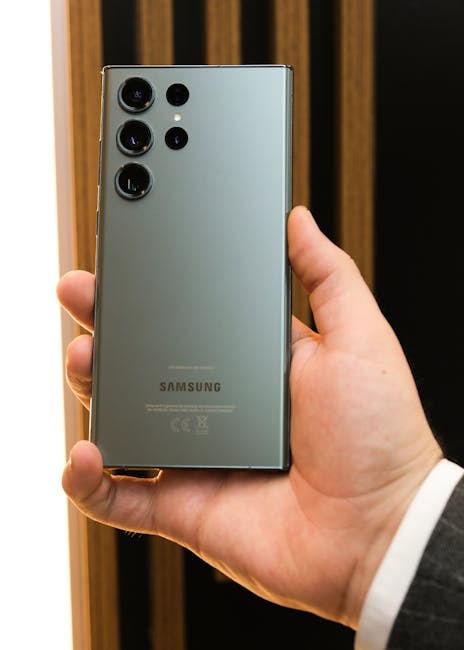
Galaxy S24 Setup Guide: Maximize Your New Samsung Device
The Samsung Galaxy S24 represents a significant leap forward in smartphone technology, integrating advanced AI capabilities, a refined user experience, and cutting-edge hardware. To fully unlock its potential, a thorough setup process is crucial. This guide provides a comprehensive, SEO-optimized walkthrough to get your Galaxy S24 ready for optimal performance, security, and personalized functionality. We’ll cover everything from initial unboxing and software setup to personalization, app management, and leveraging the device’s unique AI features.
Unboxing and Initial Power-On: The First Steps
Upon receiving your Galaxy S24, the unboxing experience is straightforward. Carefully remove the device and any accessories, which typically include a USB-C cable, SIM ejector tool, and documentation. Locate the power button, usually on the side of the device, and press and hold it to initiate the power-on sequence. The Samsung logo will appear, followed by the welcome screen.
Initial Software Setup: Guided Configuration
The Galaxy S24 guides you through an intuitive setup process. The first step involves selecting your preferred language. Subsequently, you’ll be prompted to connect to a Wi-Fi network. A stable internet connection is essential for downloading system updates, transferring data, and signing into your Samsung and Google accounts. If you have a physical SIM card, the device will prompt you to insert it. For eSIM users, this process will be handled digitally later.
Data Transfer: Seamlessly Migrating Your Digital Life
Samsung’s Smart Switch app is the cornerstone of data migration. During the setup, you’ll be offered the option to transfer data from your old phone. Whether it’s an older Samsung device, an iPhone, or another Android phone, Smart Switch facilitates the transfer of contacts, photos, videos, apps, messages, call logs, and even device settings. You can connect your old and new devices via USB-C cable for the fastest transfer, or wirelessly if preferred. Ensure both devices are adequately charged and have a stable Wi-Fi connection for wireless transfers. For those upgrading from an iPhone, Smart Switch can import data via iCloud as well. Thoroughly review the data categories available for transfer and select those most important to you.
Samsung Account and Google Account Integration: Core Functionality
Signing into your Samsung account is vital for accessing Samsung-specific services like Samsung Cloud for backups, Samsung Health for fitness tracking, and Samsung Pay for mobile payments. It also enables features like Find My Mobile. Similarly, your Google account is indispensable for accessing Google Play Store, Gmail, Google Drive, Google Photos, and other core Android services. You’ll be prompted to sign in or create new accounts during the setup. Enable two-factor authentication for both accounts to enhance security.
Security Setup: Protecting Your Device and Data
Security is paramount for any smartphone. The Galaxy S24 offers robust security options. You’ll be guided to set up a screen lock, which can be a PIN, pattern, or password. The S24 also features advanced biometric security:
- Fingerprint Sensor: The ultrasonic in-display fingerprint sensor is fast and accurate. Follow the on-screen instructions to register your fingerprints, ensuring good coverage of the sensor area with your chosen finger. Registering multiple fingers is recommended for convenience.
- Face Recognition: The S24 utilizes advanced facial recognition technology. During setup, you’ll be guided to scan your face in a well-lit environment. This is a convenient unlock method but generally considered less secure than fingerprint or PIN.
Samsung’s Secure Folder offers an additional layer of protection for sensitive apps and data, creating an encrypted, separate space on your device that requires its own authentication to access. This is ideal for confidential documents, banking apps, or private photos.
Software Updates: Staying Current and Secure
Once your initial setup is complete, the Galaxy S24 will likely prompt you to download and install any available software updates. It is imperative to install these updates. They often include:
- Security Patches: Crucial for protecting your device from emerging threats and vulnerabilities.
- Performance Enhancements: Optimizations that improve battery life, speed, and overall responsiveness.
- New Features: Updates can introduce new functionalities and improve existing ones, including enhancements to AI capabilities.
Navigate to Settings > Software update > Download and install to manually check for updates. Enabling automatic downloads over Wi-Fi ensures your device remains up-to-date without manual intervention.
Personalization: Tailoring Your Galaxy S24 Experience
The Galaxy S24 offers extensive customization options to make it truly yours.
-
Home Screen and App Drawer:
- Widgets: Add widgets for quick access to information like weather, calendar events, news, and app shortcuts. Long-press on an empty area of your home screen and tap "Widgets" to explore available options.
- App Organization: Group frequently used apps into folders. Drag one app icon onto another to create a folder. Name folders logically for easy navigation.
- Wallpaper and Themes: Personalize your device’s appearance with custom wallpapers and themes. Access these through Settings > Wallpaper & style. Samsung offers a vast library of themes, or you can use your own photos.
-
Display Settings:
- Adaptive Brightness: This feature automatically adjusts screen brightness based on ambient light, saving battery and improving viewing comfort.
- Eye Comfort Shield: Reduces blue light emission to minimize eye strain, especially during extended use or at night. Schedule it to activate automatically.
- Screen Mode: Choose between Vivid (more saturated colors) and Natural (more realistic colors) to suit your preference.
- Refresh Rate: The S24 features an adaptive refresh rate (up to 120Hz) for smoother scrolling and animations. You can opt for a standard 60Hz to conserve battery if preferred. Access these under Settings > Display.
-
Sound and Vibration:
- Ringtones and Notification Sounds: Customize distinct sounds for calls, messages, and app notifications.
- Vibration Intensity: Adjust the strength of vibrations for alerts.
- Dolby Atmos: Enhance your audio experience with immersive sound, particularly noticeable with headphones or compatible speakers. Explore this in Settings > Sounds and vibration > Sound quality and effects.
Leveraging Galaxy AI: The Power of Intelligent Features
The Galaxy S24’s standout feature is its suite of integrated AI functionalities, collectively known as Galaxy AI. Getting these ready requires some initial setup and understanding of their capabilities.
-
Circle to Search with Google: This revolutionary feature allows you to search for anything on your screen simply by circling, highlighting, scribbling on, or tapping it. Once enabled (typically by default, but check Settings > Advanced features > Circle to Search), long-press the home button or gesture bar to activate it. This is incredibly useful for quick product research, identifying landmarks, or finding information about people or objects in images.
-
Live Translate: Facilitates real-time, two-way voice and text translations during phone calls. To use it, ensure you have downloaded the relevant language packs (Settings > General management > Language > Live Translate). When making a call, an option to activate Live Translate will appear if supported languages are detected. This is a game-changer for international communication.
-
Chat Assist: This feature aids in composing messages. It can translate your messages, correct grammar and spelling, and even adjust the tone of your text (e.g., make it more professional or casual). Access it within your messaging app by tapping the AI icon.
-
Note Assist: Within Samsung Notes, Note Assist can automatically format your handwritten notes into neatly organized text, summarize lengthy notes, and even generate titles. Ensure you’re using Samsung Notes and have the AI features enabled within the app.
-
Transcript Assist: Transcribes voice recordings into text, ideal for lectures, meetings, or interviews. This feature is found within the Voice Recorder app and requires processing time after recording.
-
Generative Edit (Photo Editing): This advanced AI photo editing tool allows you to move, resize, or remove objects from your photos. It can also fill in the background intelligently. Access this within the Gallery app by selecting a photo and tapping the edit icon, then the AI icon. Be mindful of the ethical implications of AI-generated edits.
App Management and Optimization: Streamlining Your Usage
-
App Downloads and Organization: Utilize the Google Play Store and Samsung Galaxy Store for app downloads. Organize your apps logically on your home screen and in the app drawer. Uninstall unused apps to free up storage space and improve performance. Navigate to Settings > Apps to manage your installed applications.
-
Background App Activity: Some apps consume battery and data in the background. You can restrict background activity for specific apps in Settings > Battery and device care > Battery > Background usage limits.
-
App Permissions: Review app permissions regularly to ensure only necessary access is granted. Go to Settings > Apps > [Select App] > Permissions.
Battery Optimization: Maximizing Power Longevity
The Galaxy S24 boasts improved battery life, but further optimization can extend its longevity:
- Adaptive Battery: This feature learns your usage patterns and prioritizes battery power for frequently used apps. Ensure it’s enabled in Settings > Battery and device care > Battery > More battery settings.
- Power Saving Mode: A straightforward way to conserve battery by limiting CPU speed, reducing brightness, and restricting background data usage.
- Screen Brightness and Timeout: Lowering screen brightness and setting a shorter screen timeout duration significantly impacts battery consumption.
- Location Services: While essential for many apps, frequently running GPS can drain battery. Manage location permissions for apps in Settings > Location.
Camera Setup and AI Integration: Capturing Stunning Photos
The Galaxy S24’s camera system is a highlight. Beyond basic usage, explore its AI enhancements:
- Scene Optimizer: The camera automatically detects scenes (food, landscapes, pets) and optimizes settings for the best shot. Ensure this is enabled in the Camera app settings.
- AI Zoom: The S24’s advanced zoom capabilities are powered by AI for clearer, sharper zoomed images.
- Pro Mode: For photography enthusiasts, Pro mode offers manual control over settings like ISO, shutter speed, and focus.
- AI Photo Editing: As mentioned in the Galaxy AI section, Generative Edit is a powerful tool for post-capture enhancement.
Connectivity: Wi-Fi, Bluetooth, and 5G
- Wi-Fi: Connect to reliable Wi-Fi networks for faster downloads, software updates, and reduced mobile data usage.
- Bluetooth: Pair Bluetooth headphones, speakers, smartwatches, and other accessories for seamless connectivity. Manage these in Settings > Connections > Bluetooth.
- 5G: Ensure your S24 is set up to utilize 5G if your carrier plan and coverage support it for the fastest mobile data speeds. Check Network settings.
Samsung Ecosystem Integration: Enhancing Your Devices
If you own other Samsung devices like a Galaxy Watch or Galaxy Buds, integrating them with your S24 enhances the overall experience:
- Galaxy Wearable App: Manage your Galaxy Watch and Buds, customize settings, and access fitness data.
- Quick Share: A fast and easy way to share files between Samsung devices.
Accessibility Features: Tailoring for Every User
Samsung provides a comprehensive suite of accessibility features to cater to diverse needs:
- Vision Enhancements: High contrast mode, magnifier, font adjustments, and screen readers.
- Hearing Enhancements: Mono audio, hearing aid compatibility, and real-time captions.
- Physical and Motor Skills: Assistant Menu, interaction control, and single-tap actions.
Access these in Settings > Accessibility.
Ongoing Maintenance and Best Practices:
Regularly review your settings, clear cache for apps that are misbehaving, and perform periodic backups using Samsung Cloud or Google Drive. Keep your software updated and stay informed about new Galaxy AI features as they are released. By following this comprehensive guide, you’ll ensure your Galaxy S24 is not just set up, but optimized for a powerful, personalized, and intelligent mobile experience.





Leave a Reply