
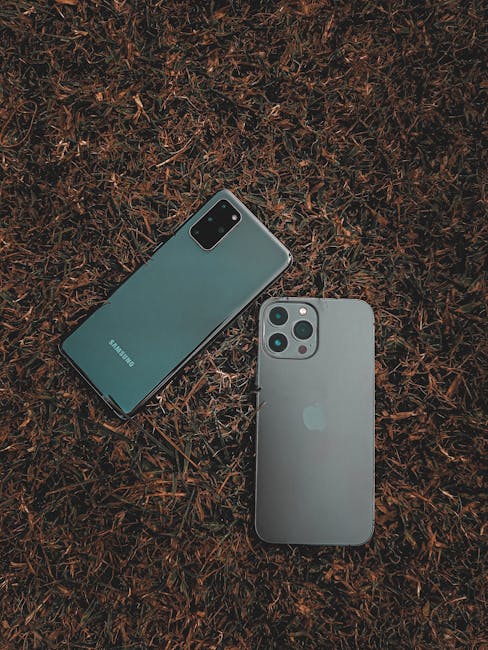
Optimize Your iPhone and Android Devices: A Comprehensive Guide to Enhanced Performance and Functionality
The ubiquitous smartphone, whether an Apple iPhone or an Android device, serves as a primary tool for communication, information access, entertainment, and productivity. As these devices become increasingly integrated into our daily lives, maintaining optimal performance and maximizing their utility is paramount. This guide provides a detailed, SEO-friendly approach to improving your iPhone and Android devices, covering a spectrum of strategies from basic maintenance to advanced customization.
I. Core Maintenance and Performance Enhancement for Both Platforms
Regardless of your chosen operating system, consistent core maintenance is the foundation of optimal device performance.
A. Storage Management: Reclaiming Precious Space
Insufficient storage is a primary culprit behind sluggish device performance. Both iOS and Android offer built-in tools to identify and manage storage.
-
iOS: Navigate to
Settings > General > iPhone Storage. Here, you’ll find a breakdown of storage usage by app. "Offload App" is a valuable feature, removing an app while retaining its data, allowing for quick reinstallation. Manually delete unneeded photos, videos, and large files. Utilize cloud storage solutions like iCloud Photos or Google Photos (available on both platforms) to offload media. Regularly review and delete old downloads from the "Files" app. -
Android: Access
Settings > Storage. Similar to iOS, Android provides an overview of used space. Different manufacturers may have slightly different paths, but look for options like "Internal Storage" or "Device Care." Utilize the built-in "Clean Storage" or "Smart Storage" features, which often suggest files for deletion. Uninstall unused apps, clear app caches and data (be cautious with clearing data, as it may reset app settings), and move large files to an SD card if your device supports it or to cloud storage.
B. Software Updates: The Key to Security and Efficiency
Operating system updates are not merely about new features; they are crucial for performance optimization, bug fixes, and security patches.
-
iOS: Go to
Settings > General > Software Update. Enable automatic updates to ensure your device is always running the latest stable version. -
Android: The path varies by manufacturer, but typically it’s
Settings > System > System UpdateorSettings > About Phone > Software Update. Enable automatic updates if available. Regularly check for updates manually.
C. Battery Health Optimization: Extending Device Longevity
A degraded battery significantly impacts user experience and can lead to performance throttling.
-
iOS: Visit
Settings > Battery > Battery Health & Charging. "Optimized Battery Charging" learns your charging habits to reduce battery aging. If "Maximum Capacity" is significantly below 80%, consider a battery replacement. Limit background app refresh for non-essential apps (Settings > General > Background App Refresh). Reduce screen brightness and utilize dark mode, especially on OLED displays. -
Android: Battery settings can be found under
Settings > Battery. Many Android devices offer "Adaptive Battery," which learns your usage patterns to prioritize power for frequently used apps. Review app battery usage to identify power-hungry applications and restrict their background activity. Similar to iOS, reduce screen brightness and use dark themes.
D. App Management: Streamlining Your Digital Ecosystem
Unused or poorly optimized apps can drain resources and clutter your device.
- Both Platforms: Regularly audit your installed applications. Uninstall any apps you haven’t used in months. Pay attention to apps with high battery or data consumption in their respective settings. Consider lighter-weight alternatives to resource-intensive apps.
E. Restarting Your Device: The Simple Yet Effective Solution
A simple restart can clear temporary files, close background processes, and resolve minor software glitches, often leading to a noticeable performance boost. Make it a habit to restart your iPhone or Android device at least once a week.
II. Platform-Specific Optimization Strategies
A. iPhone Optimization: Leveraging iOS Ecosystem and Features
1. iCloud Optimization:
- iCloud Photos: Ensure "Optimize iPhone Storage" is enabled within
Photos > iCloud settings. This keeps full-resolution photos in iCloud and smaller versions on your device, saving space. - iCloud Drive: Utilize iCloud Drive for document storage and syncing. Offload less frequently accessed files to iCloud Drive to free up local storage.
- iCloud Backups: Regularly back up your iPhone to iCloud (
Settings > [Your Name] > iCloud > iCloud Backup) to ensure data recovery and facilitate seamless device migration.
2. Siri and Search Optimization:
- Siri Suggestions: Customize Siri suggestions within
Settings > Siri & Searchto display relevant apps and actions based on your usage. - Spotlight Search: Optimize Spotlight by disabling search for apps you rarely use. Access this via
Settings > Siri & Search > Spotlight Search.
3. Accessibility Features for Performance:
- Reduce Motion: For users sensitive to animations,
Settings > Accessibility > Motion > Reduce Motioncan lessen graphical strain and potentially improve perceived performance. - Reduce Transparency:
Settings > Accessibility > Display & Text Size > Reduce Transparencycan also slightly reduce graphical processing.
4. App-Specific Tweaks:
- Safari: Clear website data and history periodically (
Settings > Safari > Clear History and Website Data). Limit website notifications. - Messages: Manage message history (
Settings > Messages > Keep Messages) to avoid excessive storage consumption. Disable iMessage for SMS/MMS if not needed by setting "Send as SMS" to "Always."
B. Android Optimization: Harnessing the Power of Customization and Control
1. Developer Options: Unlocking Advanced Settings
Developer Options, once enabled, offer granular control over system processes. To enable, go to Settings > About Phone and tap on "Build number" seven times.
- Animation Scales: Within Developer Options, adjust "Window animation scale," "Transition animation scale," and "Animator duration scale" to 0.5x or disable them entirely for a snappier feel.
- Background Process Limit: While useful for power users, be cautious with this setting. Setting it to "No background processes" will prevent apps from running in the background, impacting notifications and multitasking. A limit of 2-4 processes is generally a good balance.
- Force GPU Rendering: Enabling this can improve graphics performance for some apps.
- Don’t Keep Activities: This setting destroys every activity as soon as the user leaves it. It can free up RAM but will also disrupt the user experience for many apps.
2. Storage Optimization Tools:
- File Manager Apps: Third-party file manager apps can provide more advanced control over file organization and deletion than built-in tools.
- SD Card Usage (if applicable): For devices with SD card slots, move photos, videos, and app data to the SD card to free up internal storage. Format the SD card as "Internal Storage" (Adoptable Storage) for a more seamless integration if your device supports it.
3. App Permissions and Background Activity:
- App Permissions: Regularly review app permissions under
Settings > Apps > [App Name] > Permissions. Revoke permissions that are not essential for the app’s functionality. - Background Data Usage: Restrict background data usage for apps that don’t require constant connectivity under
Settings > Apps > [App Name] > Mobile data & Wi-Fi.
4. Manufacturer-Specific Performance Modes:
Many Android manufacturers include built-in performance modes (e.g., "Performance Mode," "Game Mode," "Power Saving Mode") that can be accessed through device settings or quick toggles. These modes adjust CPU and GPU frequencies, network settings, and background app limitations to prioritize speed or battery life.
5. Launcher Customization:
Third-party launchers (e.g., Nova Launcher, Lawnchair) offer extensive customization options, including icon packs, custom gestures, and theme engines. Some launchers are optimized for performance and can make your Android device feel significantly faster.
III. Advanced Optimization Techniques for Both Platforms
A. Network Optimization: Ensuring Smooth Connectivity
Slow internet speeds can make even the fastest device feel sluggish.
- Wi-Fi Optimization: Ensure you are connected to a strong Wi-Fi signal. Restart your router periodically. Consider upgrading your router if it’s outdated. On both platforms, forget and re-add Wi-Fi networks that exhibit issues.
- Mobile Data Management: Monitor your mobile data usage to avoid exceeding limits, which can lead to throttling. Turn off mobile data when on Wi-Fi.
- VPN Usage: While VPNs enhance privacy, they can introduce latency. Disable your VPN when speed is paramount and re-enable it for security when needed.
B. Customization for Efficiency:
- Widgets and Shortcuts: Strategically place frequently used apps and widgets on your home screen for quick access. This reduces the need to navigate through menus.
- Notification Management: Overwhelming notifications can be a distraction and impact performance. Disable notifications for non-essential apps on both iOS and Android. Utilize notification grouping features to keep your notification shade organized.
C. Security and Malware Prevention:
While both iOS and Android are relatively secure, malicious apps or phishing attempts can impact performance and compromise data.
- Install Apps from Official Stores: Only download apps from the Apple App Store or Google Play Store.
- Be Wary of Suspicious Links and Downloads: Avoid clicking on unknown links or downloading files from untrusted sources.
- Run Antivirus/Antimalware Scans (Android): While not as prevalent as on desktop, Android users can benefit from reputable antivirus apps for added security.
D. Resetting Your Device as a Last Resort:
If all else fails, a factory reset can restore your device to its original state, often resolving persistent performance issues.
- iOS:
Settings > General > Transfer or Reset iPhone > Erase All Content and Settings. Ensure you have a recent iCloud backup. - Android:
Settings > System > Reset options > Erase all data (factory reset). Again, ensure you have a recent backup.
By implementing these comprehensive strategies, users can significantly improve the performance, efficiency, and overall user experience of their iPhone and Android devices, ensuring these essential tools remain powerful and responsive assets in their daily lives.





Leave a Reply