
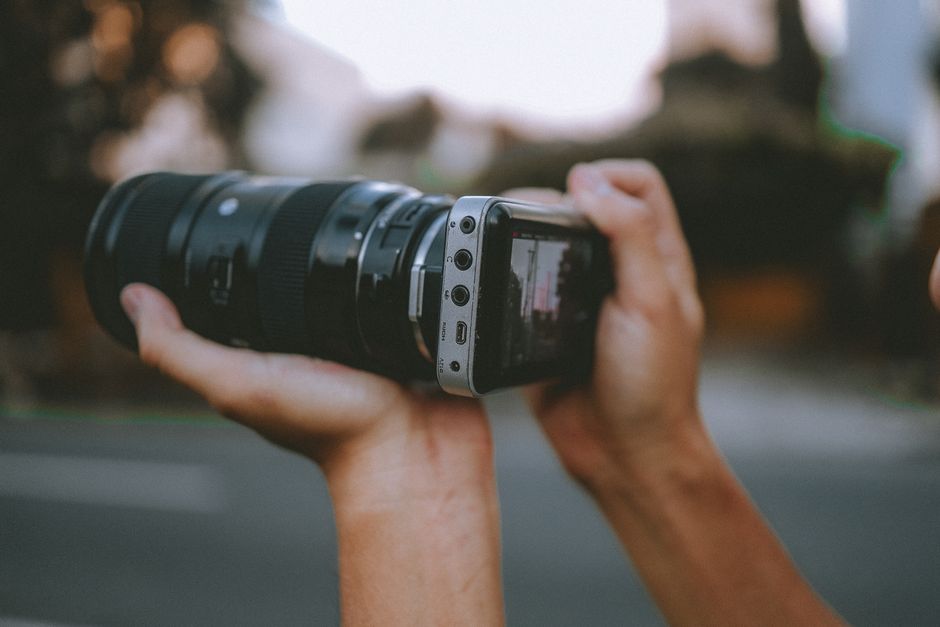
Mastering iPhone Video Recording: Settings, Techniques, and Best Practices
Capturing high-quality video on your iPhone is no longer a niche pursuit; it’s an essential skill for content creators, social media enthusiasts, and everyday users alike. Understanding your iPhone’s video recording capabilities, from obscure settings to effective shooting techniques, is paramount to producing polished, engaging footage. This guide delves deep into optimizing your iPhone video experience, covering everything from fundamental settings to advanced strategies for professional-looking results.
The iPhone’s native Camera app offers a surprising amount of control over video recording. Accessing these settings is straightforward: navigate to Settings > Camera > Record Video. Here, you’ll find the crucial resolution and frame rate options. Resolution determines the sharpness and detail of your video. For most users, 1080p (Full HD) at 30 fps (frames per second) strikes an excellent balance between quality and file size. However, for more cinematic or slow-motion effects, consider 4K resolution. 4K offers four times the detail of 1080p, making it ideal for footage that will be heavily edited, zoomed into, or displayed on large screens. Be mindful that 4K video files are significantly larger, so ensure you have ample storage space.
Frame rate dictates the fluidity of motion. 30 fps is standard for most broadcast television and online content, providing a natural look. Increasing the frame rate, such as to 60 fps, results in smoother motion, which is particularly beneficial for action shots, sports, or any scene with rapid movement. For extreme slow-motion, iPhones offer 120 fps and even 240 fps in 1080p. While these produce dramatic slow-down capabilities, they require excellent lighting and are best used sparingly for specific artistic effects. When choosing a frame rate, consider the final output and the intended viewing experience. If you plan to slow down footage, opt for a higher frame rate. If you’re aiming for a traditional broadcast look, 30 fps is usually sufficient.
Beyond resolution and frame rate, iPhone video settings include HDR (High Dynamic Range) Video. Enabling HDR Video captures a wider range of light and dark tones, resulting in more vibrant colors and greater detail in both bright highlights and deep shadows. This is especially useful for scenes with high contrast, such as shooting outdoors with bright sunlight and deep shade. However, HDR video files can be larger and may not be compatible with older editing software or playback devices. For maximum compatibility and if you prefer a more traditional color rendition, you might choose to disable HDR. Experiment with this setting to see what best suits your shooting environment and aesthetic preferences.
Another critical setting is Audio Zoom. When enabled, Audio Zoom focuses the microphone on the subject you’re zooming in on, reducing background noise and improving the clarity of your primary audio source. This can significantly enhance the listenability of your videos, particularly when recording interviews or focusing on a specific sound. However, in some situations, you might want to capture ambient sound, in which case disabling Audio Zoom would be more appropriate.
For professional control over exposure and focus, utilize the iPhone’s manual capabilities. While the iPhone automatically adjusts exposure and focus, you can manually lock these settings to prevent unwanted changes during a shot. To do this, tap and hold on the screen where you want to set the focus and exposure. A yellow box will appear, indicating that focus and exposure are locked. You can then slide your finger up or down to adjust exposure manually. This is invaluable for maintaining consistent lighting and sharpness throughout a scene, especially when the subject is moving or the lighting conditions are changing.
Stabilization is a cornerstone of professional-looking video. The iPhone employs optical image stabilization (OIS) and digital image stabilization (DIS) to smooth out shaky footage. While these are effective, for truly professional results, consider external stabilization tools. A gimbal is a motorized stabilizer that counteracts shakes and jitters, providing incredibly smooth, cinematic movement. Even a simple tripod can dramatically improve stability, especially for static shots or time-lapses. When hand-holding your iPhone, practice good technique: keep your elbows tucked in, use both hands, and move with your legs rather than your arms.
Lighting is arguably the most crucial element in video production, and it’s no different with an iPhone. Even the best camera will struggle in poor lighting. Natural light is often the most flattering. Position your subject facing a window (but not in direct sunlight) for soft, even illumination. Avoid harsh overhead lighting or backlighting, which can create unflattering shadows. If shooting indoors, invest in affordable LED lighting kits. Simple softboxes or ring lights can make a dramatic difference. For outdoor shooting, be aware of the sun’s position. The "golden hour" – the period shortly after sunrise and before sunset – offers warm, diffused light that is ideal for video.
Composition plays a vital role in visual storytelling. Employ the rule of thirds by mentally dividing your frame into nine equal sections with two horizontal and two vertical lines. Place your subject or key elements along these lines or at their intersections for a more balanced and engaging composition. Utilize leading lines – natural lines in the scene (roads, fences, rivers) that draw the viewer’s eye towards your subject. Experiment with different camera angles, shooting from high, low, or eye-level perspectives to create visual interest and convey different moods. Framing your subject within natural elements like doorways or windows can add depth and context.
Audio quality is often overlooked but is just as important as video quality. While the iPhone’s built-in microphone is decent, external microphones offer a significant upgrade. For improved audio clarity, consider a lavalier microphone (clip-on mic) for interviews or a shotgun microphone for directional audio capture. Many external microphones connect via the Lightning port or headphone jack, and adapters are available for newer iPhone models. Ensure you monitor your audio levels during recording to avoid distortion or clipping. Recording in a quiet environment is paramount, even with a good microphone. Minimize background noise by closing windows, turning off fans, and informing others that you are recording.
Editing is where your raw footage transforms into a polished final product. The iPhone’s native iMovie app is a capable and user-friendly editor for basic edits, titles, and transitions. For more advanced editing, consider third-party apps like LumaFusion (iOS) or Adobe Premiere Rush. These apps offer more professional features, including multi-track editing, color correction, and advanced audio mixing. When editing, focus on pacing and storytelling. Cut out unnecessary pauses or rambling. Use transitions sparingly and purposefully. Pay attention to audio levels and ensure a consistent sound mix. Color grading can further enhance the mood and aesthetic of your video.
Understanding file formats and codecs is essential for workflow efficiency. The iPhone typically records in H.264 or H.265 (HEVC) codecs. HEVC offers better compression, meaning smaller file sizes for the same quality, but it requires more processing power to decode and edit. When exporting from editing software, choose a format and codec that balances quality and file size for your intended platform. For web sharing, H.264 is generally widely compatible.
For capturing smooth, panning shots or moving sequences, explore cinematic mode. Introduced on newer iPhone models, Cinematic Mode simulates a shallow depth of field and allows you to shift focus between subjects after recording. This feature adds a professional, film-like quality to your videos but requires careful subject placement and controlled movement to achieve the best results. Experiment with its capabilities to add a unique visual style to your content.
Ultimately, the best way to master iPhone video recording is through practice and experimentation. Don’t be afraid to try different settings, techniques, and editing styles. Analyze footage you admire and try to replicate its characteristics. Pay attention to the details: the subtle shift in light, the clarity of the audio, the flow of the edit. By systematically exploring and applying the principles outlined in this guide, you can elevate your iPhone video productions from amateur to impressive, capturing compelling stories and moments with remarkable quality. Regularly check for software updates, as Apple frequently enhances the camera and video capabilities of iPhones, introducing new features and improving existing ones. Staying informed about these updates will ensure you’re always leveraging the full potential of your device.





Leave a Reply