
The Fastest Path to Xiaomi Mastery: Unlocking Your Device’s Potential
Understanding and effectively utilizing your Xiaomi device is a journey that can be significantly accelerated by focusing on key features, system navigation, and common functionalities. This article serves as a direct guide, bypassing unnecessary preamble to deliver actionable insights for rapid Xiaomi proficiency. We’ll delve into the core of MIUI, Xiaomi’s proprietary Android skin, highlighting its unique characteristics and how to leverage them for a streamlined user experience. From advanced settings to hidden gems, this is your expedited route to Xiaomi mastery.
The foundation of any Xiaomi device lies within its operating system, MIUI. Unlike stock Android, MIUI boasts a distinct user interface and a suite of pre-installed applications designed to enhance functionality and user engagement. To grasp Xiaomi quickly, familiarize yourself with its core structure. Upon unlocking your device, you’ll encounter the home screen, a grid of app icons and widgets. Swiping left or right navigates between different home screens, allowing for organization and personalization. The notification shade, accessed by swiping down from the top of the screen, is crucial. It displays alerts from applications and offers quick toggles for common settings like Wi-Fi, Bluetooth, flashlight, and screen brightness. Understanding how to customize this shade, by long-pressing icons to rearrange them or adding/removing toggles, significantly speeds up daily interactions.
MIUI’s Settings app is your command center. It’s highly organized, but its sheer breadth can be daunting initially. For accelerated understanding, focus on these key areas: Connectivity (Wi-Fi, Bluetooth, Mobile Data, Hotspot), Display & Brightness (adjusting brightness, reading mode, color temperature, font size), Sound & Vibration (ringtone, notification sounds, vibration patterns), Battery & Performance (monitoring battery usage, power saving modes, app battery optimization), and Apps (managing app permissions, default apps, app cloning). Within the "Apps" section, the "Manage Apps" subsection is vital for uninstalling unwanted bloatware or force-stopping misbehaving applications.
A signature feature of MIUI is its robust customization engine. Beyond wallpapers and themes, Xiaomi allows for deep personalization of icons, system fonts, and even the layout of the notification shade and control center. Access these options through Settings > Personalization or by long-pressing on an empty area of the home screen. Exploring the Themes app, pre-installed on most Xiaomi devices, provides a vast library of free and paid themes to instantly alter the device’s aesthetic. For rapid adoption, selecting a clean, minimalist theme can reduce visual clutter and make navigating the interface more intuitive.
Security and privacy are paramount, and MIUI offers comprehensive tools. Navigate to Settings > Security. Here you’ll find options for app lock, which allows you to password-protect individual applications, preventing unauthorized access. The "App permissions" section within Settings > Apps is critical for managing what data each app can access (camera, microphone, location, etc.). Regularly reviewing these permissions is a fundamental step in maintaining your privacy. Xiaomi also offers a built-in Antivirus scanner within the Security app, which can scan for malware and potentially harmful files.
The camera is often a major selling point for Xiaomi devices, and its native app is packed with features. For quick mastery, focus on the primary shooting modes: Photo, Video, Portrait, and Night Mode. Within the Photo mode, familiarize yourself with the zoom capabilities, HDR settings (High Dynamic Range, for better contrast in challenging lighting), and the AI scene detection, which automatically optimizes camera settings based on what you’re photographing. The Pro Mode offers manual control over ISO, shutter speed, white balance, and focus, empowering more advanced photography, but for rapid understanding, mastering the automatic modes is the priority. Experimenting with short video clips and portrait shots with varying depth-of-field effects will quickly reveal the camera’s capabilities.
The Gallery app is where your photos and videos reside. Beyond basic viewing, it offers editing tools for cropping, rotating, adjusting brightness and contrast, and applying filters. Xiaomi’s Gallery also includes features like AI-powered album organization and the ability to create simple slideshows. Understanding how to quickly search for specific photos (e.g., by location, date, or even objects recognized by the AI) can save significant time.
MIUI’s integration with Google services is seamless, but it also introduces its own set of optimizations. The Battery & Performance settings offer granular control over how apps consume power. Enabling "Battery saver" or "Ultra battery saver" modes can significantly extend battery life, but be aware that these modes may restrict background activity for some apps. For apps you want to run unimpeded, navigate to Settings > Apps > Manage Apps, select the specific app, and under "Battery saver," choose "No restrictions." This is a crucial step for ensuring timely notifications and uninterrupted app functionality.
Xiaomi devices often come with a suite of proprietary apps that offer unique functionalities. These include the Mi Browser, Mi File Manager, Mi Remote (for controlling IR-enabled devices), and Mi Video. While many users opt for Google’s alternatives, understanding the purpose and basic operation of these pre-installed apps can sometimes offer advantages. For instance, the Mi File Manager provides a more integrated approach to file organization and transfer compared to some third-party options. The Mi Remote app, if your device has an IR blaster, unlocks a whole new level of smart home control.
Dual SIM functionality is common on Xiaomi phones, and managing it is straightforward. Within Settings > SIM cards & mobile networks, you can set preferred SIMs for calls, SMS, and mobile data. This allows you to easily manage work and personal lines or leverage different carrier plans for cost savings. Understanding how to toggle data between SIMs is essential for avoiding unexpected charges.
For users new to the Xiaomi ecosystem, the concept of Dual Apps or App Twin is a game-changer. This feature, found under Settings > Apps, allows you to create duplicate instances of certain social media and messaging apps. This is incredibly useful for running two separate accounts on the same device simultaneously (e.g., two WhatsApp accounts, two Facebook accounts). Simply select the app you wish to duplicate, and a second icon will appear on your home screen.
The Control Center in MIUI, distinct from the notification shade, offers quick access to frequently used toggles and media controls. Swiping down from the top-right corner of the screen (on newer MIUI versions) reveals this streamlined interface. Customizing the Control Center to include your most used toggles can significantly speed up daily operations. Common customizations include adding toggles for Wi-Fi, Bluetooth, mobile data, flashlight, screenshot, and screen recording.
Screen recording is a built-in feature on most Xiaomi devices, easily accessible through the Control Center or by searching for "Screen recorder" in the app drawer. This is invaluable for troubleshooting, creating tutorials, or capturing gameplay. The settings within the screen recorder allow you to adjust resolution, frame rate, and whether to record audio.
Gesture navigation is the default on many modern smartphones, including Xiaomi. To quickly master it, understand the basic gestures: swipe up from the bottom to go home, swipe up and hold to access recent apps, and swipe from the left or right edge of the screen to go back. These gestures replace traditional on-screen navigation buttons and offer a cleaner, more immersive display. If you prefer the traditional button layout, you can revert to it in Settings > Additional settings > Full screen display.
"Additional settings" is a section in MIUI that houses various advanced and less frequently used options. For accelerated understanding, explore its subsections. "Quick ball" provides a floating on-screen shortcut menu for customizable actions. "Second space" allows you to create a completely separate user profile on your device, with its own apps, files, and settings, ideal for separating work and personal life or for privacy. "Dual apps" as previously mentioned, is also often found here.
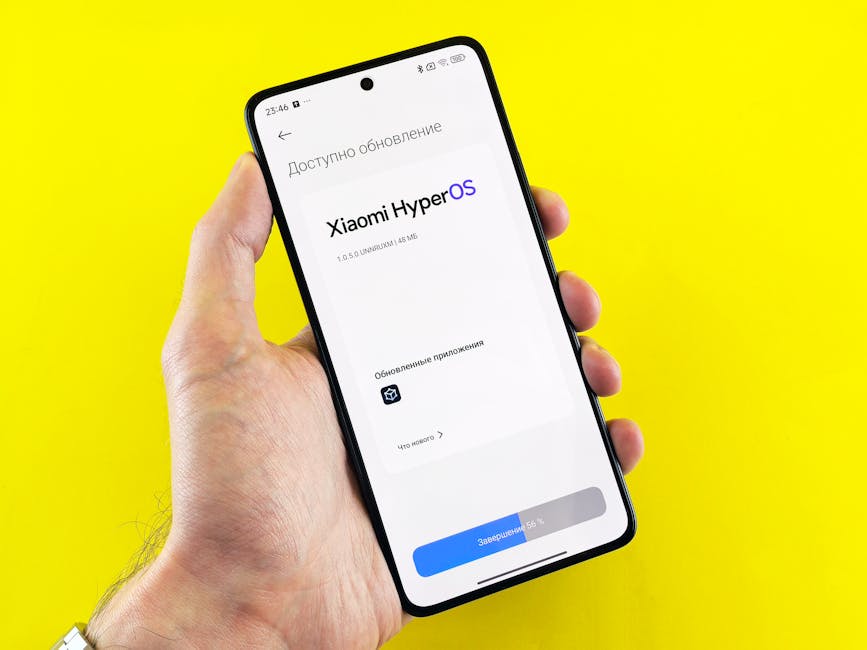
Understanding the Xiaomi update cycle is also beneficial. Xiaomi frequently releases MIUI updates, which bring new features, bug fixes, and security patches. You can check for updates manually by navigating to Settings > About phone > MIUI version. It’s generally recommended to keep your device updated for optimal performance and security.
For rapid adoption, consider utilizing the Mi Community app. This official forum connects Xiaomi users, where you can find tips, ask questions, and stay informed about new features and updates. Engaging with the community, even passively by browsing discussions, can accelerate your learning curve.
Finally, remember that consistent usage is the most effective way to master any device. The more you interact with your Xiaomi phone, the more intuitive its operations will become. Focus on the core functionalities that you use daily – calls, messaging, browsing, and essential apps. As you become comfortable, gradually explore the more advanced settings and features. This targeted approach, combined with the insights provided in this guide, will ensure the quickest path to Xiaomi mastery.





Leave a Reply